
If you have lost or forgotten your current password, no worries! You'll want to use our "Forgot Password" feature so you can reset your password and regain access to your account. Please select the platform you're currently using for specific guidance below:
Please note your new password must contain at least 8 characters, one uppercase, one lowercase, one number.
If you created your account with your Google or Apple login, you will need to change your password with the respective provider.The change password function will not work for these two log-ins as it is only designed for users who sign up with a Swap account via their email.
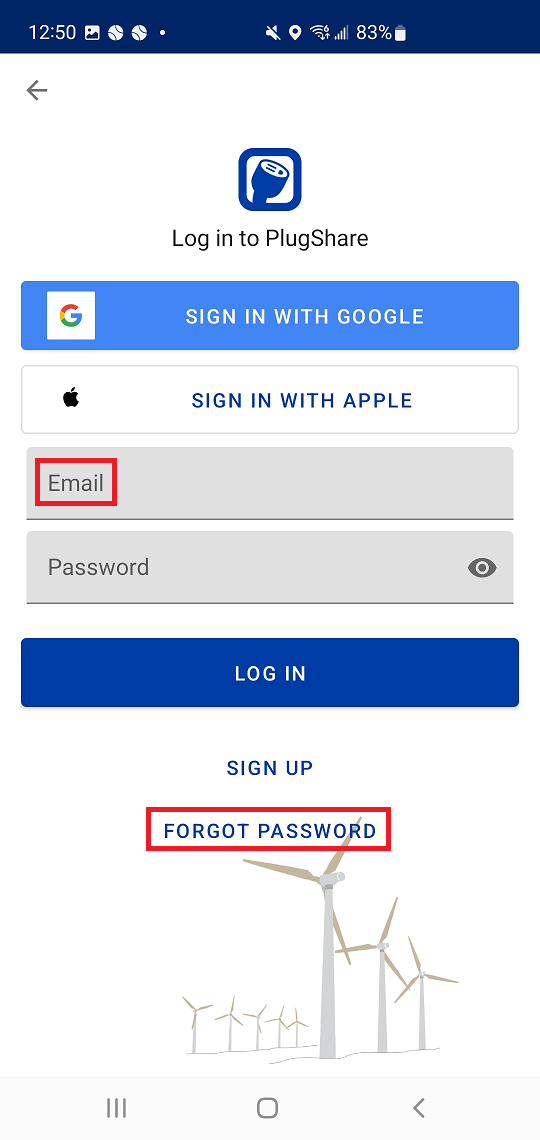
Reset your password on Android
- From the landing page, tap "Me" in the bottom right
- Select "Log In" at the top of the page
- Enter your email address and tap "Forgot Password" in blue
- Check your email for a message from noreply@swap.id titled "Reset your Password"
- Sometimes these automated emails will land in your spam or junk folders, so please check if you don't see the Reset your Password email in your inbox.
- Follow the instructions from the email message and either:
- Click the "Reset Your Password" box
- Enter the six (6) digit code from the bottom of the email into the website pop-up.
- Provide the requested details (including your new password) and tap "Submit"
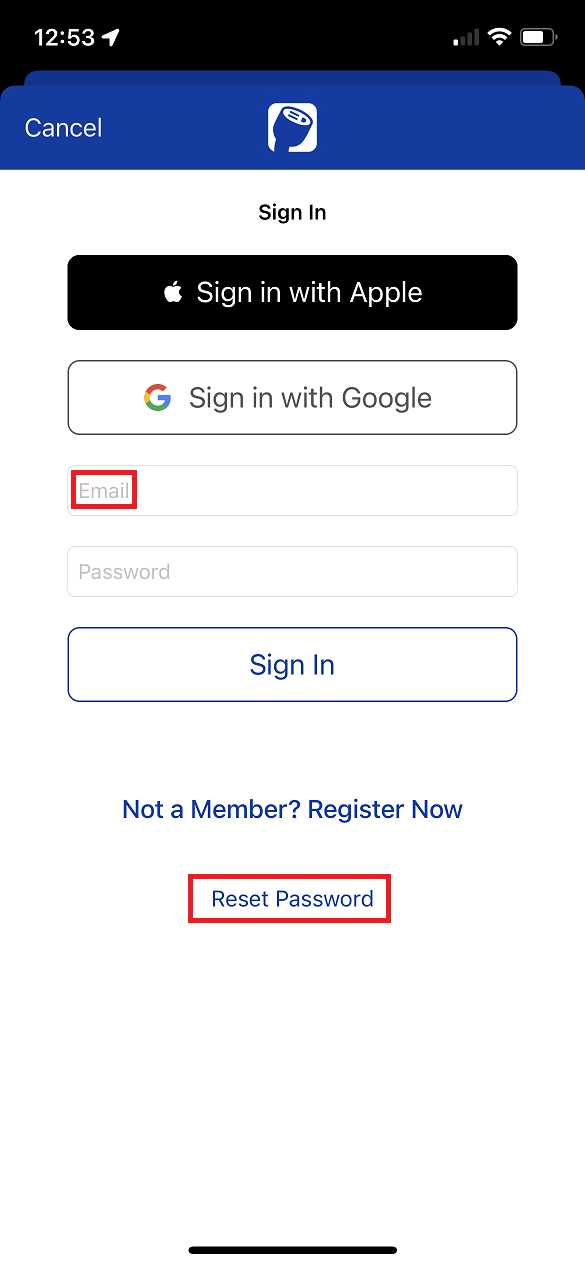
Reset your password on iOS (Apple)
- From the landing page, select "Me" on the bottom of the screen
- Within the "Me" page, tap "Sign in or sign up today!" at the top of the page
- Enter the email for your Swap account and tap "Reset Password"
- Check your email inbox for a message from noreply@swap.id titled "Reset your Password"
- Sometimes these automated emails will land in your spam or junk folders, so please check if you don't see the Reset you Password email in your inbox.
- Follow the instructions from the email message and either:
- Click the "Reset Your Password" box
- Enter the six (6) digit code from the bottom of the email into the website pop-up.
- Provide the requested details (including your new password) and tap "Reset Password"
- A pop up will confirm your password has been reset
- You will then need to sign into your account using your new password. (Refer to the first step to locate the "Sign Up" button in the app.)
Comments
0 comments
Please sign in to leave a comment.